
A data science approach to tracking AI regulation
The official guide to the Global AI Regulation Tracker API
Last updated: 15 December 2025
Introduction
In case you didn’t know, I released an API lets you access the underlying data of the Global AI Regulation Tracker and this Ctrl+AI+Reg newsletter. Below is the launch post.

In this article, I’ll walk you through on how to set up and use the API for your own projects. This guide assumes a basic level of Python or NodeJS programming.
In case of interest, the Global AI Regulation Tracker can also be directly embedded as a widget (and whitelabelled) in your own website. Relevant details in the post linked below. This widget feature, however, is out of the scope of this article.

What’s the point of this API?
If you’ve subscribed to this newsletter, I’m guessing it’s because you need to be on top of AI regulatory updates for your job, research or business. For many of you, my tracker and this newsletter may already be enough for your purposes - if so, fantastic!
However, the tracker and newsletter are inherently static formats - i.e. they’re presented only for manual reading, but are not customisable nor manipulable for data processing.
This is why I’ve provided the Global AI Regulation Tracker API. The API provides direct, structured access to the underlying data (in JSON object format) that feeds both the tracker and this newsletter.
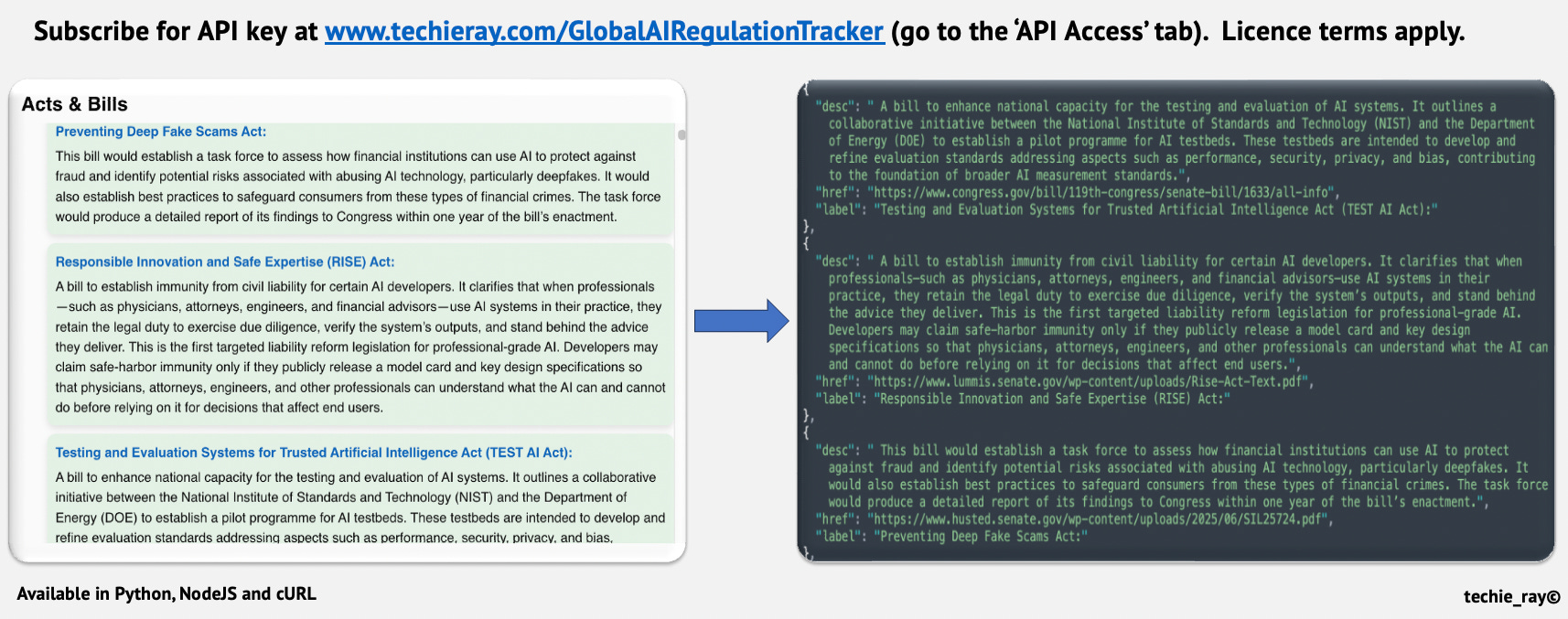
Practically, the API can help you eliminate the manual data entry (e.g. “copying and pasting” updates from this newsletter into your internal compliance alerts).
Instead, you can use the data programmatically to build use cases, such as:
Internal data feeds: Automatically send the latest updates straight into your company’s systems for managing rules, risks, and compliance (your GRC tools).
Custom alerting: Create alerts or internal chatbots that only show rules relevant to your specific country.
Repository maintenance: Keep your public websites or training materials on global AI policy up-to-date instantly, without anyone manually having to check and update them.
Data analysis: Because the updates are in a structured JSON format, you can run your own data analysis algorithms to find out interesting insights and trends. In fact, the “Insights Dashboard” on the tracker was powered by this API! See the 26 May 2025 issue below for a sneak peek of that dashboard.
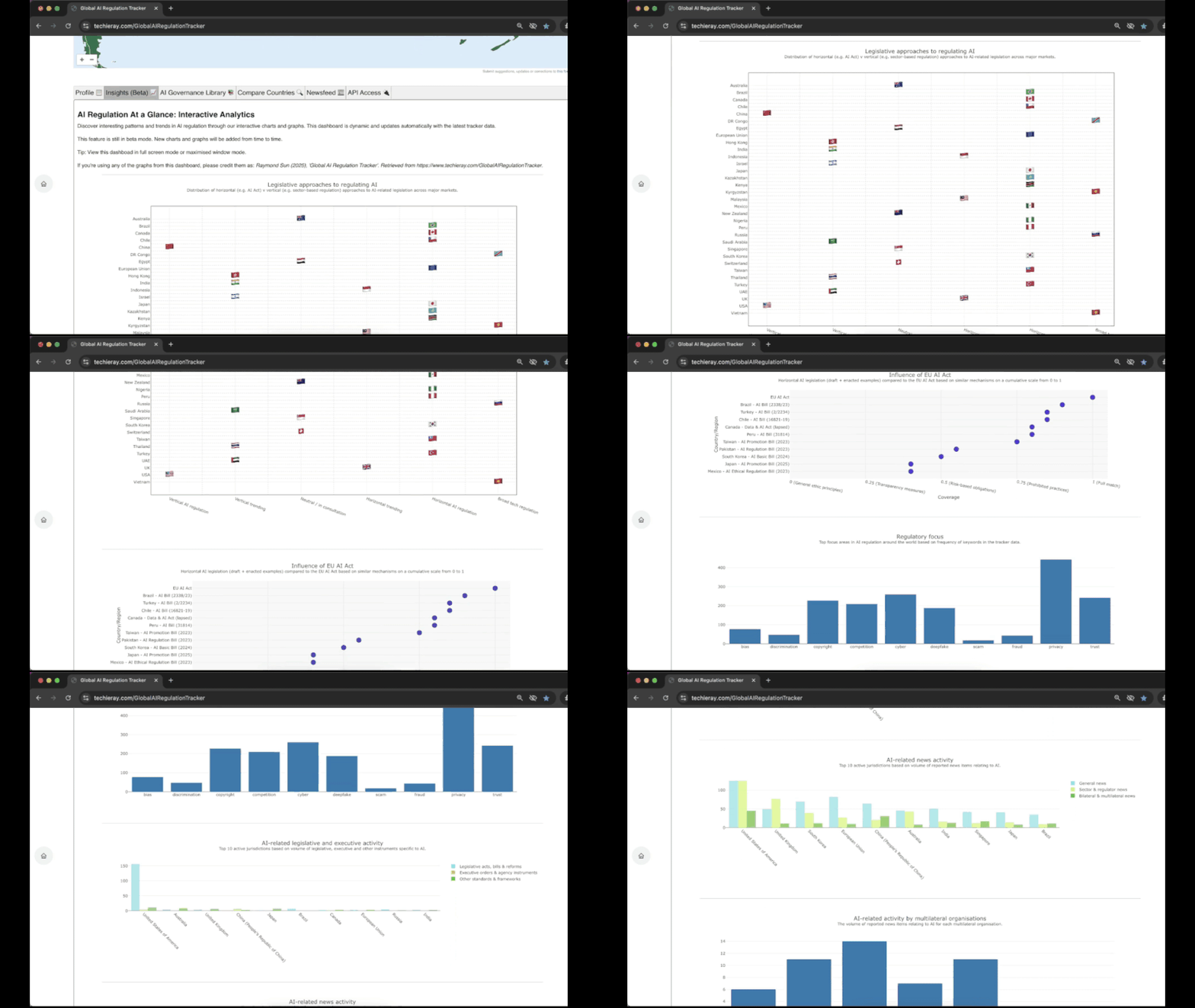

These use cases highlight the power of the API to enable you to take data science approach to tracking and analysing AI regulation. It’s a peek into the future of regulation.
Registering for API key
To access this API service, you will need to order a valid API key by purchasing a subscription plan. To view the plans, go to the “API Access” tab in the Global AI Regulation Tracker.
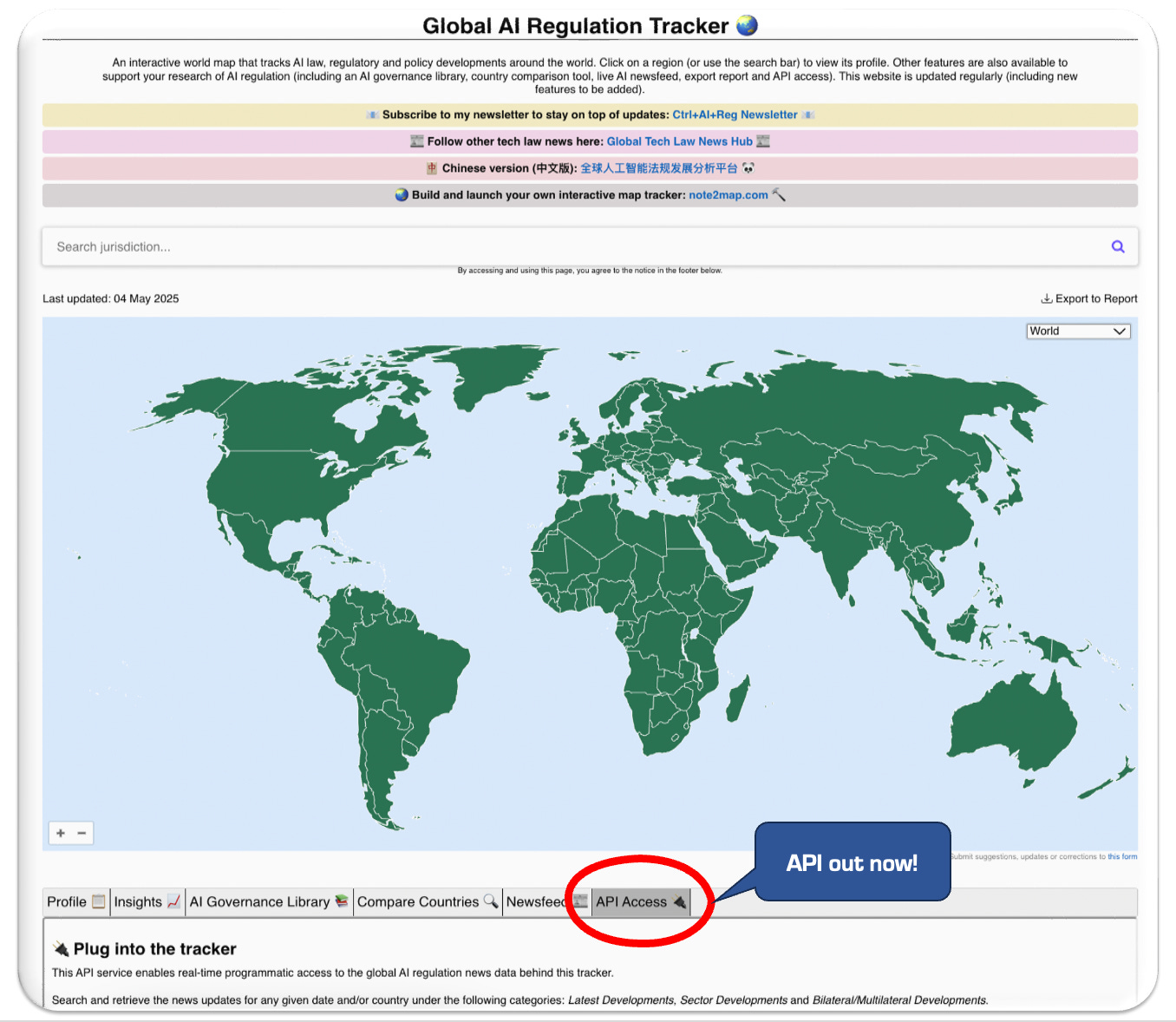
Once you’re in that tab, scroll down to see the below plans (and their respective licence scope). Terms apply to your use of the API, available here: API Terms of Service.
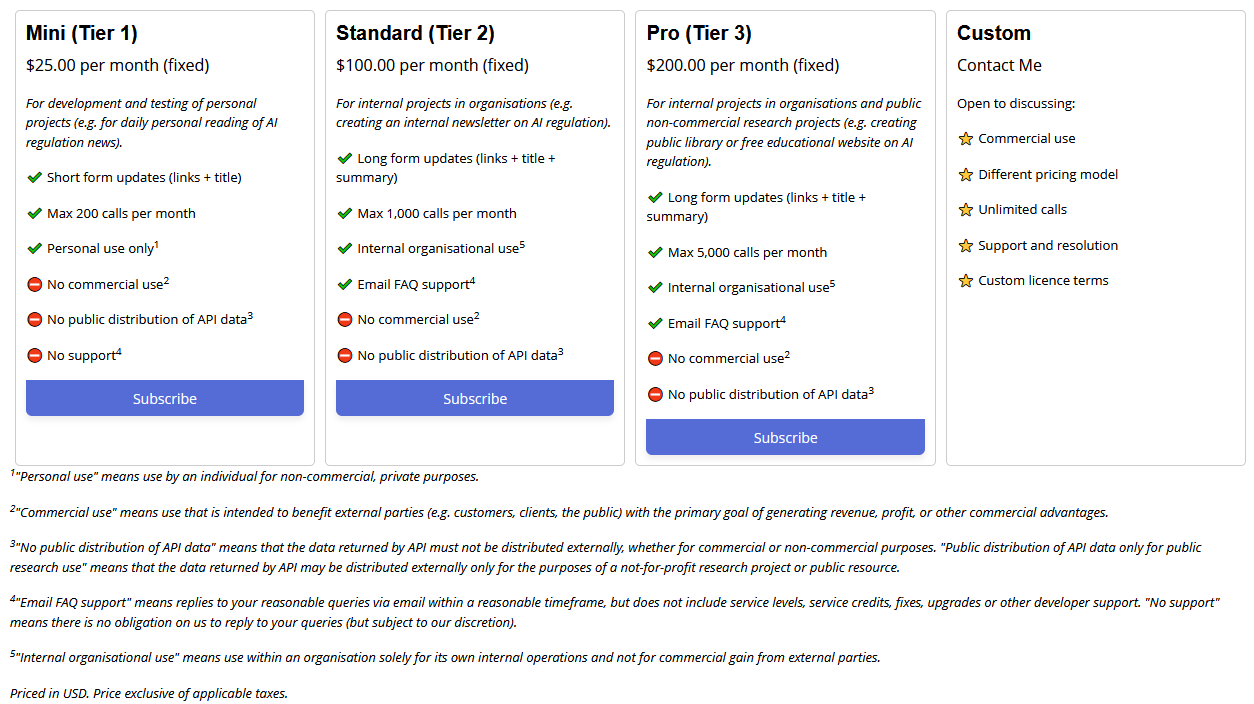
When you click ‘Subscribe’, you will be redirected to a Stripe payment page to complete the payment of the subscription plan. Payment will be faciliated and secured by Stripe in accordance with Stripe’s own terms and policies.
If payment is successful, you will be redirected to a page containing your unique API key.
Installation
Once you have your key, download the API client library made available for:
As usual, the easiest to download is via pip (for python) or npm (for node) in your terminal.
---Python installation---
pip install techieray-ai-reg-tracker-api

---NodeJS installation---
npm i techieray-ai-reg-tracker-api
Initialisation
Once the client library is installed, start a new project in your code editor of choice, and initialise the library as follows.
Python
from techieray_ai_reg_tracker_api import GlobalAIRegulationTrackerClient

# Use your actual key. This is your authentication layer.
api_key = “###INSERT API KEY###”
client = GlobalAIRegulationTrackerClient(API_KEY)
NodeJS
const { GlobalAIRegulationTrackerClient } = require(’techieray-ai-reg-tracker-api’)

// Use your actual key. This is your authentication layer.
const api_key = “###INSERT API KEY###”
const client = new GlobalAIRegulationTrackerClient(api_key)
How does the API work?
The API is super simple to use. All you need to invoke the .call() method of the instantiated API object (e.g. for the purposes of this guide, it would be client.call())
Inside the .call() method, you can specify the following parameters.
market (i.e. the jurisdiction from which you want to retrieve news). Mandatory
target news (i.e. the category of news you want to retrieve). Optional
target date (i.e. the date on which you want to retrieve news). Optional
See the Arguments Dictionary section below for a full list of argument values for each parameter.
Example usages
1) Search updates for a specific date across all markets
This searches for news updates dated 25 October 2023 across the world. Note that the target_news argument is intentionally left as “”.
Python
client.call(
    market = "global",
    target_news = "",
    target_date = 2023-10-25"
)
NodeJS
client.call(
    market = "global",
    targetNews = "",
    targetDate = "2023-10-25"
)
2) Search updates for a specific date in a specific market
This searches for news updates dated 25 October 2023 in the United States of America (’US’). The search will go through all latest_news, sector_news and bilateral_multilateral_news (unless target_news argument is specified)
Python
client.call(
    market = “US”,
    target_news = “”,
    target_date = “2023-10-25”
)
NodeJS
client.call(
    market = “US”,
    targetNews = “”,
    targetDate = “2023-10-25”
)
3) Search specific class of updates in a specific market
This searches for latest_news (across all dates) in the United States of America (’US’). Note that the target_date argument is intentionally left as “”.
Python
client.call(
    market = “US”,
    target_news = “latest_news”,
    target_date = “”
)
NodeJS
client.call(
    market = “US”,
    targetNews = “latest_news”,
    targetDate = “”
)
4) Search specific class of updates on specific date in a specific market
This searches for latest_news dated 25 October 2023 in the United States of America (’US’).
Python
client.call(
    market = “US”,
    target_news = “latest_news”,
    target_date = “2023-10-25”
)
NodeJS
client.call(
    market = “US”,
    targetNews = “latest_news”,
    targetDate = “2023-10-25”
)
Arguments dictionary
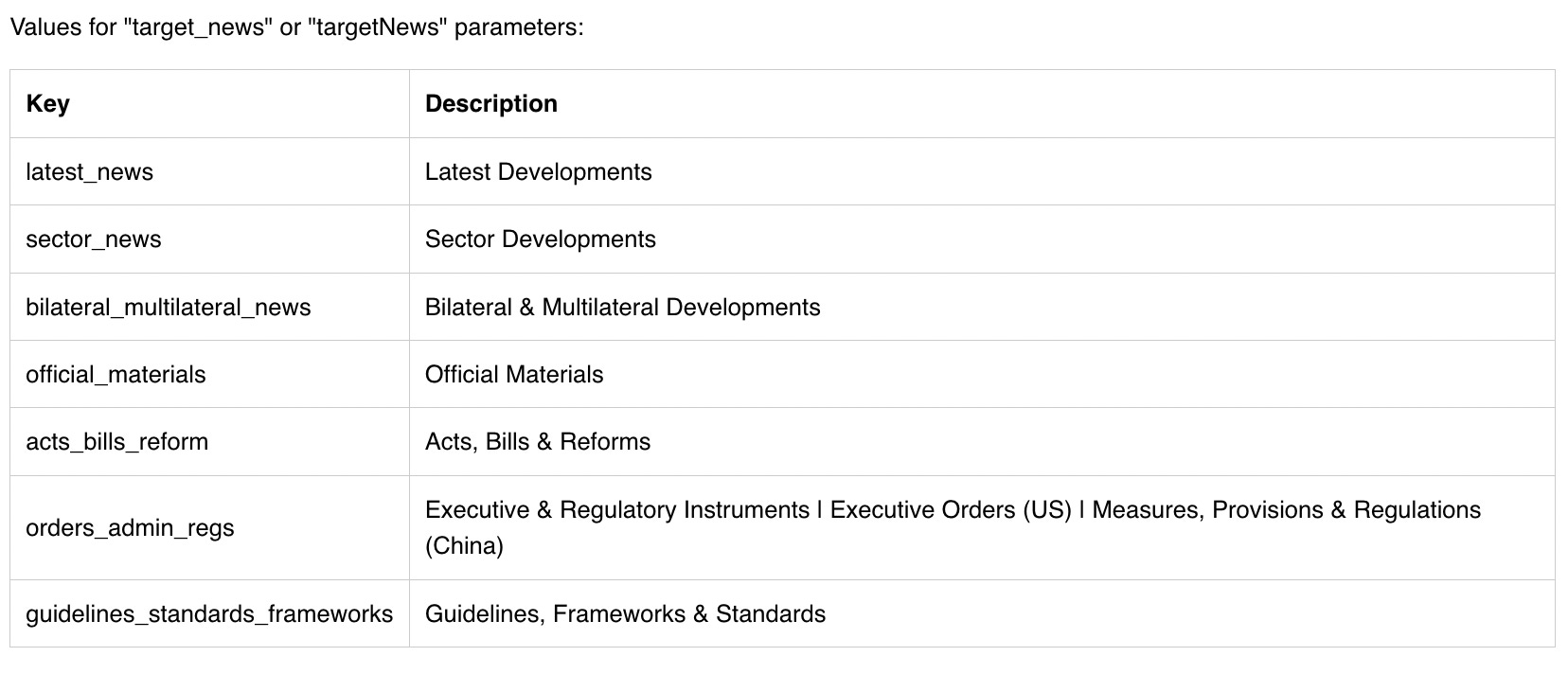
target_news
The categories correspond to the categories set out on the Global AI Regulation Tracker.
Search and retrieve the news updates for any given date and/or country under the following categories: Latest Developments | Sector Developments | Bilateral & Multilateral Developments (to the extent that category is available on the country’s profile).
You can also search for items under the categories of Official Materials | Acts, Bills & Reforms | Guidelines, Frameworks & Standards | Executive & Regulatory Instruments (to the extent that category is available on the country’s profile).
See the ‘key’ column for the string values that you can assign to the target_news parameter.
target_date
The target_date argument is a string, and must be in the format ‘yyyy-mm-dd’.
For example, ‘2023-10-25’
market
Countries, regions and groups are represented the following codes.
#Groups
Europe: ‘European Union’,
COE: ‘Council of Europe’,
ASEAN: ‘Association of Southeast Asian Nations’,
LAC: ‘Intergovernmental Council on Artificial Intelligence for Latin America and the Caribbean’,
CLAD: ‘Latin American Center for Development Administration’,
AFU: ‘African Union’,
EARFAI: ‘Eastern Africa Sub-Regional Forum on Artificial Intelligence’,
SARFAI: ‘Southern Africa Sub-Regional Forum on Artificial Intelligence’,
CIS: ‘ Commonwealth of Independent States’
G7: ‘Group of Seven’,
G20: ‘Group of Twenty’,
OECD: ‘Organisation for Economic Co-operation and Development’,

#Countries
AF: ‘Afghanistan’,
AX: ‘Åland Islands’,
AL: ‘Albania’,
DZ: ‘Algeria’,
AS: ‘American Samoa’,
AD: ‘Andorra’,
AO: ‘Angola’,
AI: ‘Anguilla’,
AQ: ‘Antarctica’,
AG: ‘Antigua and Barbuda’,
AR: ‘Argentina’,
AM: ‘Armenia’,
AW: ‘Aruba’,
AU: ‘Australia’,
AT: ‘Austria (EU)’,
AZ: ‘Azerbaijan’,
BS: ‘Bahamas’,
BH: ‘Bahrain’,
BD: ‘Bangladesh’,
BB: ‘Barbados’,
BY: ‘Belarus’,
BE: ‘Belgium (EU)’,
BZ: ‘Belize’,
BJ: ‘Benin’,
BM: ‘Bermuda’,
BT: ‘Bhutan’,
BO: ‘Bolivia’,
BA: ‘Bosnia and Herzegovina’,
BW: ‘Botswana’,
BR: ‘Brazil’,
IO: ‘British Indian Ocean Territory’,
VG: ‘British Virgin Islands’,
BN: ‘Brunei Darussalam’,
BG: ‘Bulgaria (EU)’,
BF: ‘Burkina Faso’,
BI: ‘Burundi’,
KH: ‘Cambodia’,
CM: ‘Cameroon’,
CA: ‘Canada’,
CV: ‘Cape Verde’,
BQ: ‘Caribbean Netherlands’,
KY: ‘Cayman Islands’,
CF: ‘Central African Republic’,
TD: ‘Chad’,
CL: ‘Chile’,
CN: ‘People\’s Republic of China’,
CX: ‘Christmas Island’,
CC: ‘Cocos Islands’,
CO: ‘Colombia’,
KM: ‘Comoros’,
CG: ‘Congo’,
CK: ‘Cook Islands’,
CR: ‘Costa Rica’,
HR: ‘Croatia (EU)’,
CU: ‘Cuba’,
CW: ‘Curaçao’,
CY: ‘Cyprus (EU)’,
CZ: ‘Czech Republic (EU)’,
CD: ‘Democratic Republic of the Congo’,
DK: ‘Denmark (EU)’,
DJ: ‘Djibouti’,
DM: ‘Dominica’,
DO: ‘Dominican Republic’,
EC: ‘Ecuador’,
EG: ‘Egypt’,
SV: ‘El Salvador’,
GQ: ‘Equatorial Guinea’,
ER: ‘Eritrea’,
EE: ‘Estonia (EU)’,
ET: ‘Ethiopia’,
FK: ‘Falkland Islands’,
FO: ‘Faroe Islands’,
FM: ‘Federated States of Micronesia’,
FJ: ‘Fiji’,
FI: ‘Finland (EU)’,
FR: ‘France (EU)’,
GF: ‘French Guiana’,
PF: ‘French Polynesia’,
TF: ‘French Southern Territories’,
GA: ‘Gabon’,
GM: ‘Gambia’,
GE: ‘Georgia’,
DE: ‘Germany (EU)’,
GH: ‘Ghana’,
GI: ‘Gibraltar’,
GR: ‘Greece (EU)’,
GL: ‘Greenland’,
GD: ‘Grenada’,
GP: ‘Guadeloupe’,
GU: ‘Guam’,
GT: ‘Guatemala’,
GN: ‘Guinea’,
GW: ‘Guinea-Bissau’,
GY: ‘Guyana’,
HT: ‘Haiti’,
HN: ‘Honduras’,
HK: ‘Hong Kong SAR’,
HU: ‘Hungary (EU)’,
IS: ‘Iceland’,
IN: ‘India’,
ID: ‘Indonesia’,
IR: ‘Iran’,
IQ: ‘Iraq’,
IE: ‘Ireland (EU)’,
IM: ‘Isle of Man’,
IL: ‘Israel’,
IT: ‘Italy (EU)’,
CI: ‘Ivory Coast’,
JM: ‘Jamaica’,
JP: ‘Japan’,
JE: ‘Jersey’,
JO: ‘Jordan’,
KZ: ‘Kazakhstan’,
KE: ‘Kenya’,
KI: ‘Kiribati’,
XK: ‘Kosovo’,
KW: ‘Kuwait’,
KG: ‘Kyrgyzstan’,
LA: ‘Laos’,
LV: ‘Latvia (EU)’,
LB: ‘Lebanon’,
LS: ‘Lesotho’,
LR: ‘Liberia’,
LY: ‘Libya’,
LI: ‘Liechtenstein’,
LT: ‘Lithuania (EU)’,
LU: ‘Luxembourg (EU)’,
MO: ‘Macau’,
MK: ‘Macedonia’,
MG: ‘Madagascar’,
MW: ‘Malawi’,
MY: ‘Malaysia’,
MV: ‘Maldives’,
ML: ‘Mali’,
MT: ‘Malta (EU)’,
MH: ‘Marshall Islands’,
MQ: ‘Martinique’,
MR: ‘Mauritania’,
MU: ‘Mauritius’,
YT: ‘Mayotte’,
MX: ‘Mexico’,
MD: ‘Moldova’,
MC: ‘Monaco’,
MN: ‘Mongolia’,
ME: ‘Montenegro’,
MS: ‘Montserrat’,
MA: ‘Morocco’,
MZ: ‘Mozambique’,
MM: ‘Myanmar’,
NA: ‘Namibia’,
NR: ‘Nauru’,
NP: ‘Nepal’,
NL: ‘Netherlands (EU)’,
NC: ‘New Caledonia’,
NZ: ‘New Zealand’,
NI: ‘Nicaragua’,
NE: ‘Niger’,
NG: ‘Nigeria’,
NU: ‘Niue’,
NF: ‘Norfolk Island’,
KP: ‘North Korea’,
MP: ‘Northern Mariana Islands’,
NO: ‘Norway’,
OM: ‘Oman’,
PK: ‘Pakistan’,
PW: ‘Palau’,
PS: ‘Palestine’,
PA: ‘Panama’,
PG: ‘Papua New Guinea’,
PY: ‘Paraguay’,
PE: ‘Peru’,
PH: ‘Philippines’,
PN: ‘Pitcairn Islands’,
PL: ‘Poland (EU)’,
PT: ‘Portugal (EU)’,
PR: ‘Puerto Rico’,
QA: ‘Qatar’,
RE: ‘Réunion’,
RO: ‘Romania (EU)’,
RU: ‘Russia’,
RW: ‘Rwanda’,
SH: ‘Saint Helena’,
KN: ‘Saint Kitts and Nevis’,
LC: ‘Saint Lucia’,
PM: ‘Saint Pierre and Miquelon’,
VC: ‘Saint Vincent and the Grenadines’,
WS: ‘Samoa’,
SM: ‘San Marino’,
ST: ‘São Tomé and Príncipe’,
SA: ‘Saudi Arabia’,
SN: ‘Senegal’,
RS: ‘Serbia’,
SC: ‘Seychelles’,
SL: ‘Sierra Leone’,
SG: ‘Singapore’,
SX: ‘Sint Maarten’,
SK: ‘Slovakia (EU)’,
SI: ‘Slovenia (EU)’,
SB: ‘Solomon Islands’,
SO: ‘Somalia’,
ZA: ‘South Africa’,
GS: ‘South Georgia and the South Sandwich Islands’,
KR: ‘South Korea’,
SS: ‘South Sudan’,
ES: ‘Spain (EU)’,
LK: ‘Sri Lanka’,
SD: ‘Sudan’,
SR: ‘Suriname’,
SJ: ‘Svalbard and Jan Mayen’,
SZ: ‘Eswatini’,
SE: ‘Sweden (EU)’,
CH: ‘Switzerland’,
SY: ‘Syria’,
TW: ‘Taiwan’,
TJ: ‘Tajikistan’,
TZ: ‘Tanzania’,
TH: ‘Thailand’,
TL: ‘Timor-Leste’,
TG: ‘Togo’,
TK: ‘Tokelau’,
TO: ‘Tonga’,
TT: ‘Trinidad and Tobago’,
TN: ‘Tunisia’,
TR: ‘Turkey’,
TM: ‘Turkmenistan’,
TC: ‘Turks and Caicos Islands’,
TV: ‘Tuvalu’,
UG: ‘Uganda’,
UA: ‘Ukraine’,
AE: ‘United Arab Emirates’,
GB: ‘United Kingdom’,
US: ‘United States’,
UM: ‘United States Minor Outlying Islands’,
VI: ‘United States Virgin Islands’,
UY: ‘Uruguay’,
UZ: ‘Uzbekistan’,
VU: ‘Vanuatu’,
VA: ‘Vatican City’,
VE: ‘Venezuela’,
VN: ‘Vietnam’,
WF: ‘Wallis and Futuna’,
EH: ‘Western Sahara’,
YE: ‘Yemen’,
ZM: ‘Zambia’,
ZW: ‘Zimbabwe’
What’s next?
Stay tuned for further updates to this newsletter and follow-up video tutorials where I show you how to use this API to build more advanced use cases!